Adding GTS headers to WIS2 notifications
Learning outcomes
By the end of this practical session, you will be able to:
- configure a mapping between filename and GTS headers
- ingest data with a filename that matches the GTS headers
- view the GTS headers in the WIS2 notifications
- used the FM-12 SYNOP form to manually add GTS headers to a WIS2 notification
Introduction
WMO Members wishing to stop their data transmission on GTS during the transition phase to WIS2 will need to add GTS headers to their WIS2 notifications. These headers enable the WIS2 to GTS gateway to forward the data to the GTS network.
This allows Members having migrated to using a WIS2 node for data publication to disable their MSS system and ensure that their data is still available to Members not yet migrated to WIS2.
The GTS property in the WIS2 Notification Message needs to be added as an additional property to the WIS2 Notification Message. The GTS property is a JSON object that contains the GTS headers that are required for the data to be forwarded to the GTS network.
{
  "gts": {
    "ttaaii": "FTAE31",
    "cccc": "VTBB"
  }
}
Within wis2box you can add this to WIS2 Notifications automatically by providing an additional file named gts_headers_mapping.csv that contains the required information to map the GTS headers to the incoming filenames.
This file should be placed in the directory defined by WIS2BOX_HOST_DATADIR in your wis2box.env and should have the following columns:
string_in_filepath: a string that is part of the filename that will be used to match the GTS headersTTAAii: the TTAAii header to be added to the WIS2 notificationCCCC: the CCCC header to be added to the WIS2 notification
As of wis2box-1.3.0, data publishers have two options to (optionally) add GTS properties to their notifications:
-
For files uploaded into MinIO, prepare mapping-file
gts_headers_mappings.csvwith required properties. -
For data input using FM-12 SYNOP form in wis2box-webapp, select
Add GTS headersand provide manually input
Preparation
Ensure you have SSH access to your student VM and that your wis2box instance is up and running.
Make sure that you are connected to the MQTT broker of your wis2box instance using MQTT Explorer. You can use the public credentials everyone/everyone to connect to the broker.
Make sure you have a web browser open with the Grafana dashboard for your instance by going to http://YOUR-HOST:3000
Exercise 1: Using a mapping file for data uploaded into MinIO
The first exercise will demonstrate how to add GTS headers for data that is uploaded into MinIO, using a mapping file named gts_headers_mapping.csv.
creating gts_headers_mapping.csv
To add GTS headers to your WIS2 notifications, a CSV file is required that maps GTS headers to incoming filenames.
The CSV file should be named (exactly) gts_headers_mapping.csv and should be placed in the directory defined by WIS2BOX_HOST_DATADIR in your wis2box.env.
Copy the file exercise-materials/gts-headers-exercises/gts_headers_mapping.csv to your wis2box instance and place it in the directory defined by WIS2BOX_HOST_DATADIR in your wis2box.env.
cp ~/exercise-materials/gts-headers-exercises/gts_headers_mapping.csv ~/wis2box-data
Applying the mappings
After creating the gts_headers_mapping.csv file, you need to restart the wis2box-management container to apply the changes. You can do this by running the following command in your student VM:
docker restart wis2box-management
Ingesting data with GTS headers
Copy the file exercise-materials/gts-headers-exercises/A_SMRO01YRBK171200_C_EDZW_20240717120502.txt to the directory defined by WIS2BOX_HOST_DATADIR in your wis2box.env:
cp ~/exercise-materials/gts-headers-exercises/A_SMRO01YRBK171200_C_EDZW_20240717120502.txt ~/wis2box-data
Then login to the wis2box-management container:
cd ~/wis2box
python3 wis2box-ctl.py login
From the wis2box command line we can ingest the sample data file A_SMRO01YRBK171200_C_EDZW_20240717120502.txt into a specific dataset as follows:
wis2box data ingest -p /data/wis2box/A_SMRO01YRBK171200_C_EDZW_20240717120502.txt --metadata-id urn:wmo:md:not-my-centre:core.surface-based-observations.synop
Make sure to replace the metadata-id option with the correct identifier for your dataset.
Check the Grafana dashboard to see if the data was ingested correctly. If you see any WARNINGS or ERRORS, try to fix them and repeat the exercise the wis2box data ingest command.
Viewing the GTS headers in the WIS2 Notification
Go to the MQTT Explorer and check for the WIS2 Notification Message for the data you just ingested.
The WIS2 Notification Message should contain the GTS headers you provided in the gts_headers_mapping.csv file.
Exercise 2: Using the FM-12 SYNOP form
When using the FM-12 SYNOP form in the wis2box-webapp, you can manually add GTS headers to your WIS2 notifications by selecting the "Add GTS headers" option and providing the required information.
For this exercise, you can use the example data below or provide your own:
FM-12 SYNOP message:
AAXX 03094
64400 42460 71004 10285 20245 30113 40133 8493/
    333 59005 83813 81930 87363 94966 95836=
GTS headers: TTAAii=ISIH01 and CCCC=FCBB
Note
The synop2bufr-plugin in wis2box converts FM-12 SYNOP messages into BUFR, so the TTAAii should start with IS:
- I = Observational data (Binary coded) – BUFR
- S = Surface/sea level
Manually submit the FM-12 SYNOP form with GTS headers
Go to the FM-12 SYNOP form in the wis2box-webapp and fill in the form with the example data above or user your own.
Make sure to select the "Add GTS headers" option and provide the required GTS header information:
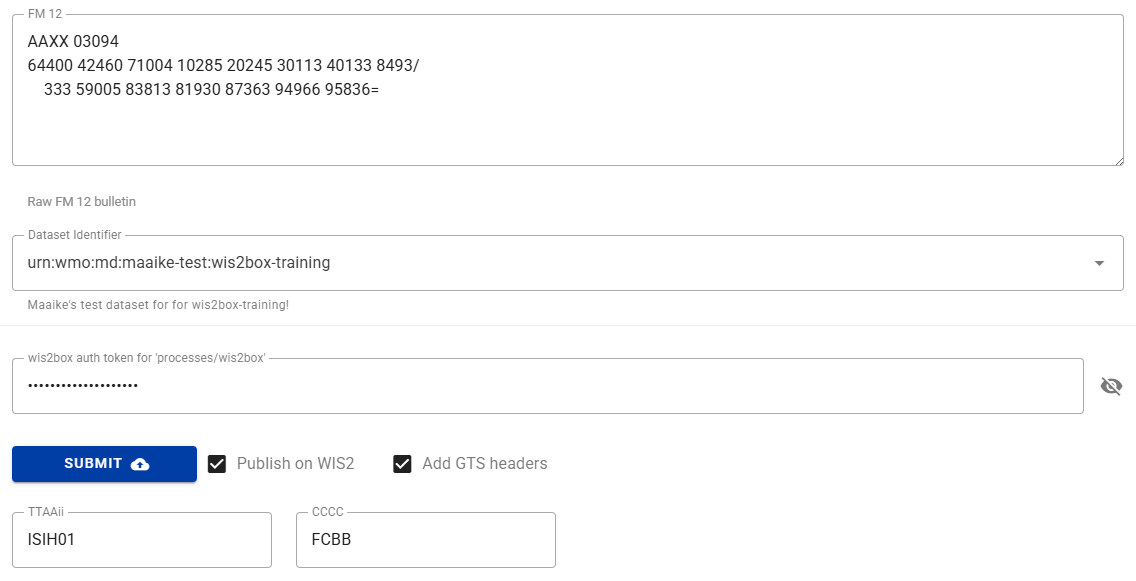
Provide the required authentication token and submit the form.
You will likely see an error message because this station is not in your station-list. You will need to add the station "0-20000-0-64400" to your station list in order for the data to be converted and published successfully.
Viewing the GTS headers in the WIS2 Notification
Go to the MQTT Explorer and check the WIS2 Notification Message for the data you just ingested to see if the GTS headers are included in the notification.
Conclusion
Congratulations!
In this practical session, you learned how to: - add GTS headers to your WIS2 notifications - verify GTS headers are made available via your wis2box installation