Downloading with WIS2 Downloader
Learning outcomes!
By the end of this practical session, you will be able to:
- find and subscribe to datasets
- use filtering to control the files downloaded
- use authentication to download access-controlled datasets
- change the default setup of WIS2 Downloader for more advanced use cases
Introduction
In WIS2, all datasets have a metadata file that can be found in the Global Discovery Catalogues. As such, it is intended for users to always consult these services to find the data being shared on WIS2.
WIS2 Downloader uses this principle by finding all records available in these GDCs and combining them internally to enable the user to navigate through the data available on WIS2. As there is a large number of records to show, it is essential to provide a way for the user to filter through them and find the correct record. Even after finding and subscribing to the correct record, there may be datasets where the number of files exceeds the user's current needs. Because of this, a second level of filtering is needed — one that operates at the time of deciding whether a file should be downloaded.
Using in the Catalogue View
The Catalogue View is one of the two ways to find and subscribe to datasets in WIS2 Downloader. It aggregates records from the Global Discovery Catalogues and presents them in a searchable, filterable interface — similar to browsing a GDC portal directly.
Navigate to Catalogue View in the left sidebar.
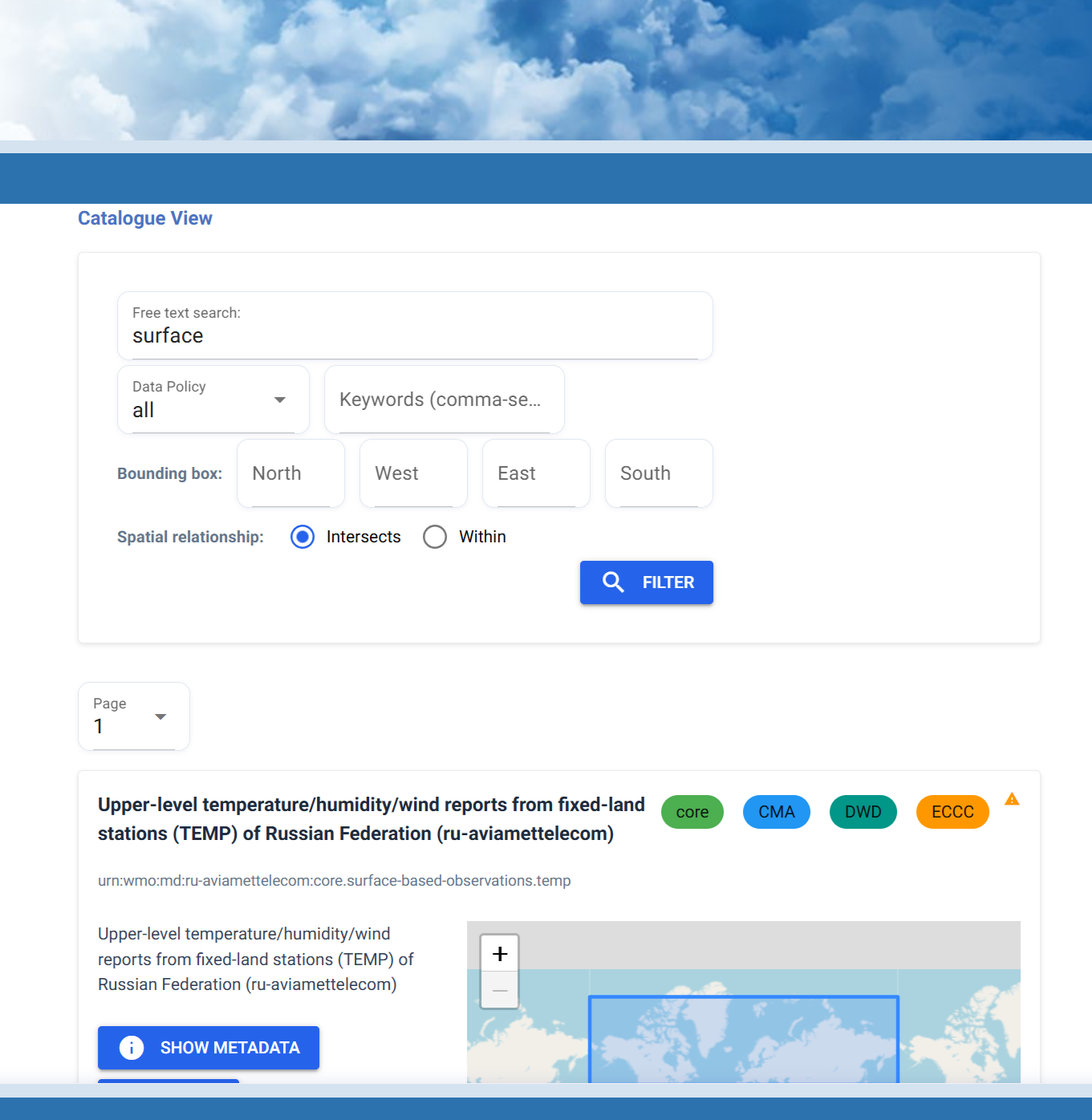
At the top of the page you will find a search bar and a set of filters. You can use these to narrow down the list of available records by keyword, centre ID, or data policy (core vs. recommended).
You can also filter spatially by defining a bounding box using four coordinate inputs — North, West, South, and East — expressed as decimal latitude and longitude values. When a bounding box is set, you can choose between two matching modes:
- Intersects — returns records whose spatial extent overlaps with the bounding box in any way.
- Within — returns only records whose spatial extent falls entirely inside the bounding box.
Reloading the catalogue
The catalogue is loaded from the GDCs when the WIS2 Downloader starts. If you believe the list is outdated, you can force a reload from the Settings section in the left sidebar.
Exercise: find and subscribe to a dataset
Find a surface observation dataset
Use the filters in the Catalogue View to find a core surface observation dataset related to temperature and precipitation.
- Type
surfacein the search bar and observe how the list of records is filtered. - Set the data policy filter to core.
- Set the keywords to include
temperature, precipitationand observe how the results change. - Select a record from the results to expand its details.
- Review the metadata shown — note the topic, the originating centre, and the data policy.
- Set the destination folder to
surface-obs. - Click Subscribe to create the subscription.
After subscribing, navigate to Manage Subscriptions to confirm the new subscription appears in the list.
Click to reveal answer
Any record whose topic contains surface-based-observations and whose data policy is core is a valid choice. Applying the keyword filter for temperature, precipitation will further narrow the results to datasets relevant to those variables.
Once subscribed, the Manage Subscriptions view will show the active subscription with its topic and target folder. Files will begin downloading as new notifications arrive on the broker.
Unsubscribing and deleting downloaded files
Go the the Manage Subscriptions view and Unsubscribe from the topic selected in the previous exercise.
Following that, clean up the downloads folder:
rm -fr /home/<username>/wis2-downloads/surface-obs
Using the Tree View
The Tree View presents the WIS2 topic hierarchy as a collapsible tree, allowing you to browse available topics level by level — similar to navigating topics in MQTT Explorer. It is designed for a higher-level, top-down exploration of what data is available on WIS2, starting from the root of the hierarchy and drilling down. This contrasts with the Catalogue View, which takes you directly to individual dataset records and is better suited when you already know what you are looking for.
Navigate to Tree View in the left sidebar.
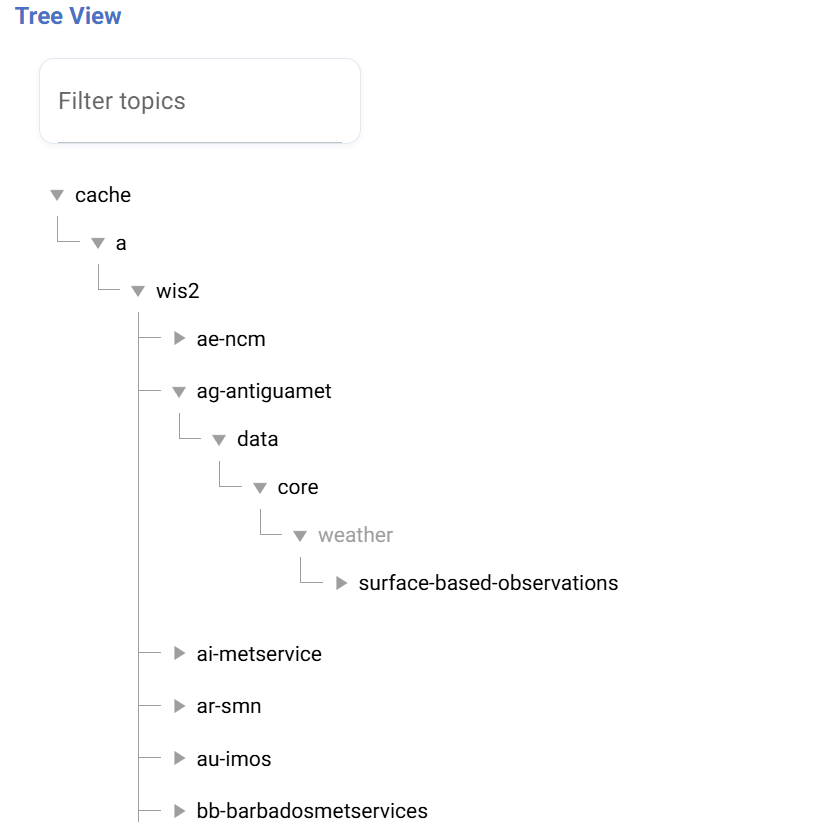
The tree is organised following the WIS2 topic hierarchy. Expand each level by clicking on a node to reveal its children. At any level you can subscribe by selecting a node and clicking Subscribe — using a wildcard (#) to capture all topics below that node.
Subscribing at different levels
Subscribing higher up in the tree (e.g. at the centre ID level) will capture all datasets published by that centre. Subscribing lower down gives you more granular control. Use the wildcard # suffix automatically appended by WIS2 Downloader when subscribing from the Tree View.
Exercise: find and subscribe using the Tree View
Subscribe to a dataset via the Tree View
Use the Tree View to find and subscribe to surface-based observation data from a specific centre.
- Expand the tree starting from the
cachenode, then navigate througha→wis2. - Select a centre ID of your choice and continue expanding until you reach a topic related to
surface-based-observations. - Review the full topic path shown — confirm it corresponds to the dataset you want.
- Set the destination folder to
surface-obs-tree. - Click Subscribe to create the subscription.
Navigate to Manage Subscriptions to confirm the subscription is active.
Click to reveal answer
Any topic path following the pattern cache/a/wis2/<centre-id>/data/core/weather/surface-based-observations/# is a valid choice. The centre ID segment will vary depending on which centre you selected in the tree.
The Manage Subscriptions view will show the new subscription alongside any previously created ones.
Unsubscribing and deleting downloaded files
Go the the Manage Subscriptions view and Unsubscribe from the topic selected in the previous exercise.
Following that, clean up the downloads folder:
rm -fr /home/<username>/wis2-downloads/surface-obs-tree
Using the Manual Subscribe View
The Manual Subscribe view allows you to create a subscription by entering a topic directly, without relying on the Global Discovery Catalogues. Unlike the Catalogue View and Tree View — which both source their topics from the GDCs — Manual Subscribe is useful when you already know the exact topic you want to subscribe to and want to set it up without browsing the catalogue with more freedom on the WTH to be used.
Navigate to Manual Subscribe in the left sidebar.
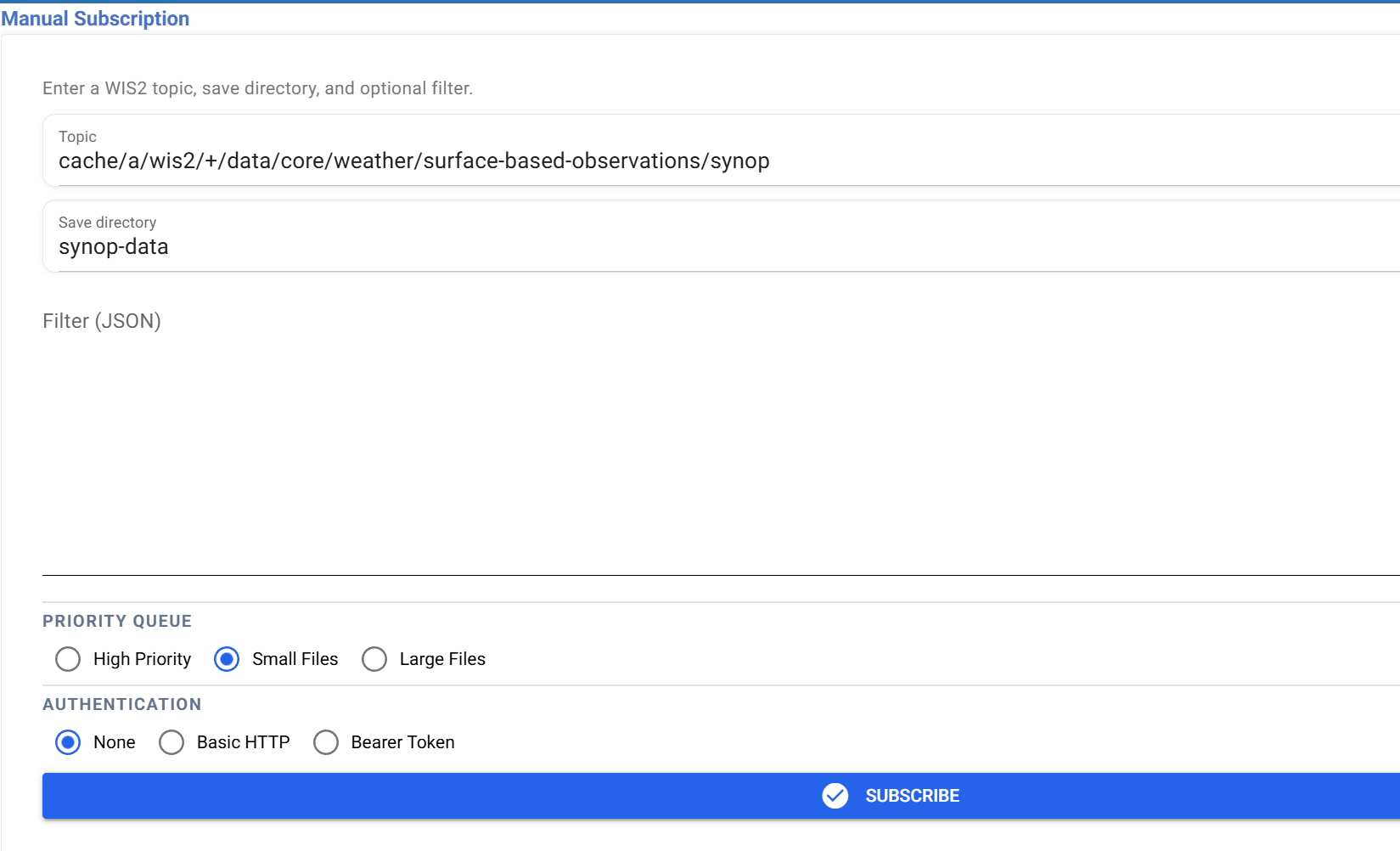
The form allows you to specify:
- Topic — the full MQTT topic to subscribe to, including any wildcards (e.g.
#&+). - Destination folder — the local subdirectory where downloaded files will be saved.
- Filter — an optional filter object in text form to control which notifications are downloaded.
- Priority queue — controls the download priority assigned to notifications from this subscription.
- Authentication — credentials required for access-controlled datasets.
When to use Manual Subscribe
Use Manual Subscribe when you already know the exact topic you want and want to set it up quickly without browsing the catalogue. when the topic is not included in the catalogue, or when you need to provide credentials for an access-controlled dataset.
Downloading from an access controlled dataset
Some datasets on WIS2 are access-controlled, meaning they require valid credentials before files can be downloaded. WIS2 Downloader supports two authentication methods in the Manual Subscribe view:
- Basic HTTP authentication — provide a username and password associated with your access credentials.
- Bearer token — provide a token issued by the data publisher in place of a username and password.
These credentials are stored per subscription and applied automatically when downloading files for that topic.
Exercise: subscribe to an access-controlled dataset on your wis2box
In this exercise you will set up an access-controlled dataset on your wis2box instance, configure WIS2 Downloader to subscribe to its broker, and verify that files are downloaded correctly when a bearer token is provided.
Set up and subscribe to an access-controlled dataset
Step 1 — Create an access-controlled dataset on wis2box
On your wis2box instance, create a dataset with access control enabled and note the topic and the bearer token generated for it. If you have not done so already, refer to the Datasets with access control practical session for the full setup steps.
Step 2 — Configure WIS2 Downloader to listen to the wis2box broker
By default WIS2 Downloader listens to the Global Broker. To receive notifications from your wis2box instance directly, you need to add a subscriber in the WIS2 Downloader compose file that points to the wis2box internal MQTT broker.
Open the docker-compose.yml file in your WIS2 Downloader directory and add the following subscriber configuration replacing WIS2BOX_URL with the URL of your wis2box instance:
  subscriber-test:
    container_name: subscriber-test
    restart: always
    build:
      context: .
      dockerfile: ./containers/subscriber/Dockerfile
      args:
        WIS2DOWNLOADER_UID: ${WIS2DOWNLOADER_UID:-10001}
        WIS2DOWNLOADER_GID: ${WIS2DOWNLOADER_GID:-988}
    env_file: *default-env
    environment:
      GLOBAL_BROKER_HOST: WIS2BOX_URL
      GLOBAL_BROKER_PORT: 443
      GLOBAL_BROKER_USERNAME: everyone
      GLOBAL_BROKER_PASSWORD: everyone
      MQTT_PROTOCOL: websockets
    depends_on:
      - redis
    networks:
      - redis-net
    logging: *loki-logging
    healthcheck:
      test: ["CMD", "pgrep", "-f", "subscriber_start"]
      interval: 30s
      timeout: 5s
      retries: 3
Restart the stack to apply the changes:
docker compose down
docker compose up -d
Step 3 — Subscribe to the dataset in WIS2 Downloader
- Navigate to Manual Subscribe in the WIS2 Downloader UI.
- Set the topic to the one configured for your access-controlled dataset on wis2box.
- Set the destination folder to
restricted-data. - Enter the bearer token generated in Step 1 in the Authentication field.
- Click Subscribe to create the subscription.
Step 4 — Push data to the dataset on wis2box
On your wis2box instance, publish a file to the access-controlled dataset. Refer to the Ingesting data for publication practical session for the steps to ingest data.
Step 5 — Verify the download
Check that the file has been downloaded by WIS2 Downloader:
ls /home/<username>/wis2-downloads/restricted-data
Click to reveal answer
With a valid bearer token, WIS2 Downloader will authenticate when downloading files for the restricted topic. The file published in Step 4 should appear in the restricted-data folder shortly after being ingested by wis2box.
If authentication fails, files will not be downloaded even though the subscription appears active in the Manage Subscriptions view. Double-check that the bearer token matches the one configured on the dataset in wis2box.
Unsubscribing and deleting downloaded files
Go to the Manage Subscriptions view and Unsubscribe from the topic, then clean up the downloads folder:
rm -fr /home/<username>/wis2-downloads/restricted-data
Filtering downloads
Filters allow you to control which files are downloaded from a subscription at the notification level — this is the second level of filtering mentioned in the introduction. Rather than downloading every file published on a topic, you can define a filter so that only notifications matching specific criteria trigger a download.
After selecting a dataset in the Catalogue View or Tree View, a filter panel appears on the right-hand side of the screen before subscribing. Here you can fill in the filter values you want to apply. WIS2 Downloader builds the filter object from your inputs automatically.
In the Manual Subscribe view you would input this filter object by hand by filling the Filter (JSON) input in the form.
Available filter inputs
- Media type — restrict downloads to specific content types (e.g.
application/bufr). - Dataset — restrict downloads to a specific dataset by its metadata identifier.
- Bounding box — restrict downloads to notifications whose data falls within a spatial area, defined by
north,south,east, andwestvalues. - Date & time range — restrict downloads to notifications published within a specific time range.
- Custom filters — filter on any other notification property as defined in the metadata record by specifying the property value(e.g. filtering by
wigos_station_identifierto only download data from a specific station).
The following is an example of the filter object generated from these inputs:
{
  "rules": [
    {
      "id": "accept",
      "order": 1,
      "match": {
        "all": [
          {
            "any": [
              { "media_type": { "exists": false } },
              { "media_type": { "in": ["application/bufr", "application/x-bufr"] } }
            ]
          },
          { "metadata_id": { "in": ["urn:wmo:md:ir-irimo:core.surface-based-observations.temp"] } },
          { "bbox": { "north": 23.0, "south": 27.0, "east": 25.0, "west": 28.0 } },
          {
            "property": "pubtime",
            "type": "datetime",
            "between": ["2026-06-08T20:00:00+00:00", "2026-06-09T05:00:59+00:00"]
          },
          {
            "property": "wigos_station_identifier",
            "type": "string",
            "in": ["0-20000-0-78338"]
          }
        ]
      },
      "action": "accept"
    },
    {
      "id": "default",
      "order": 999,
      "match": { "always": true },
      "action": "reject",
      "reason": "No filter criteria matched"
    }
  ]
}
Exercise: Subscribe with a filter
Use the Catalogue View to find a surface observation dataset and apply a spatial filter before subscribing.
- Navigate to Catalogue View and search for a surface observation dataset of your choice.
- Select the dataset to expand its details on the right-hand panel.
- In the filter inputs, set a bounding box for a region of your choice.
- Optionally, set a media type filter to restrict downloads to BUFR files.
- Set the destination folder to
filtered-obs. - Click Subscribe to create the subscription.
Wait for files to arrive and verify that only files matching your filter criteria are downloaded.
Click to reveal answer
Only notifications that match all the conditions you defined will be accepted and downloaded. All others will be rejected by the default catch-all rule.
Unsubscribing and deleting downloaded files
Go to the Manage Subscriptions view and Unsubscribe from the topic, then clean up the downloads folder:
rm -fr /home/<username>/wis2-downloads/filtered-obs
Conclusion
Congratulations!
In this practical session, you learned how to:
- find and subscribe to datasets using the Catalogue View and Tree View
- subscribe to topics directly using the Manual Subscribe view
- apply filters to control which files are downloaded from a subscription
- use authentication to download from access-controlled datasets