Set up WIS2 Downloader on your student VM
Learning outcomes!
By the end of this practical session, you will be able to:
- set up your own "WIS2 Downloader" instance and manage the specific configurations required
- navigate through the instance and set up a subscription
- remove your subscriptions and find your downloaded data
Introduction
In this session you will learn how to set up a WIS2 Downloader instance on the provided student VM and how to navigate thorugh it's different services.
About WIS2 Downloader
The WIS2 Downloader is available as a standalone Docker Compose project. It is recommended to be ran on a separate server or virtual machine from a wis2box instance, so as to not have the downloads interfering with the publication of messages.
If you would like to develop your own service for subscribing to WIS2 notifications and downloading data, you can use the WIS2 Downloader source code as a reference.
For a lighter alternative offering capabilites to both publish and download WIS2 messages, please check the pywis-pubsub project.
Preparation and requirements
If on a restricted network
The following steps only need to be applied if the downloader is run on a different network and the mentioned ports are inaccessible. In any configuration, these are the only ports needed in order to use the full capabilities of the WIS2 Downloader stack.
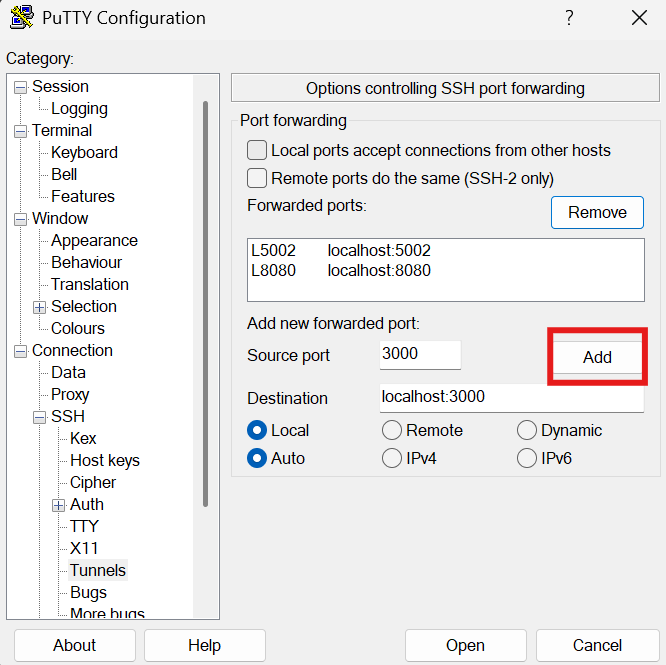
Before starting please log in to your student VM making sure to tunnel via SSH the following ports:
5002 (API)8080 (UI)3000 (Grafana)
To do this you can change the settings of your connection in Putty by adding the 3 ports mapping to ports on your own pc (localhost):
Tunneling on Linux and macOS
On Linux and macOS you can set up the same tunnels directly from the terminal using the -L flag with your SSH command:
ssh -L 5002:localhost:5002 -L 8080:localhost:8080 -L 3000:localhost:3000 <username>@<WIS2DOWNLOADER_BASE_URL>
Replace <username> and <WIS2DOWNLOADER_BASE_URL> with your student VM credentials.
WIS2 Downloader installation
Download the latest release tarball from GitHub and extract it on your student VM:
wget https://github.com/World-Meteorological-Organization/wis2downloader/archive/refs/tags/v1.0.0b1+rc4.tar.gz
tar -xzf v1.0.0b1+rc4.tar.gz
cd wis2downloader-*
Run the setup script to generate your configuration file:
bash setup.sh
Use the following download path /home/<username>/wis2-downloads replacing <username> with your username. Next, press Enter to use the defaults for both the user and groups.
Managing user permissions
You can use your different values of the user and group by modifying WIS2DWONLOADER_UID and WIS2DWONLOADER_GID in the .env file.
Remember to rebuild the images when making any change on these values to apply them.
This creates a .env file from the defaults and generates random values for FLASK_SECRET_KEY and REDIS_PASSWORD. You can review the file with cat .env — the defaults are suitable for a single-machine deployment.
Start the full service stack:
docker compose up -d
Checking the running containers
You can verify all containers started successfully with:
docker compose ps
Accesing the WIS2 Downloader UI
Open a web browser and navigate to the UI for your WIS2 Downloader instance by going to http://<WIS2DOWNLOADER_BASE_URL>:8080.
You will find yourself in the landing page which is set to the Dashboard view by default showing the Grafana dashboard.
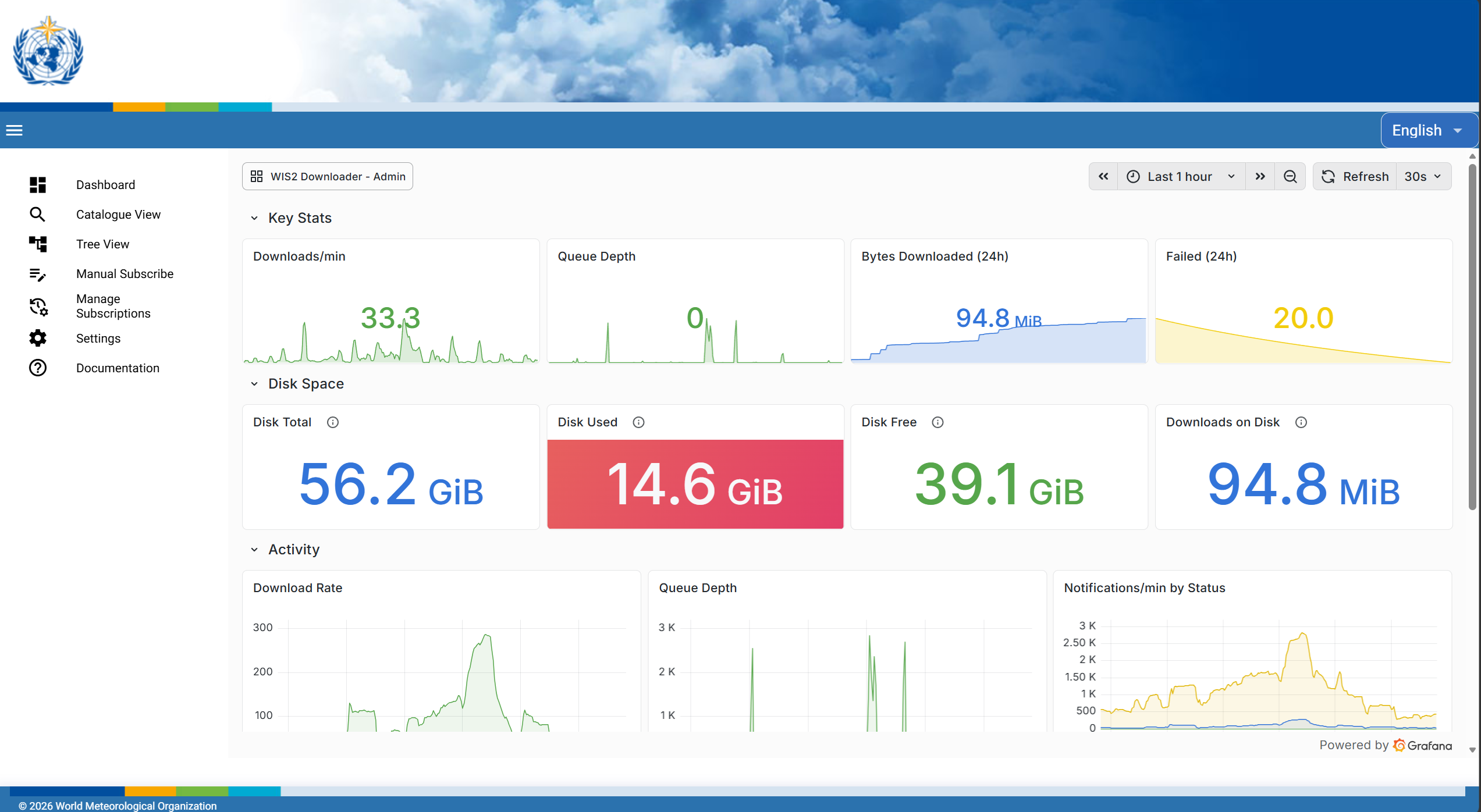
In the left sidebar menu you'll be able to navigate through all the different sections of the UI.
The main sections available are:
- Dashboard — the default landing page, an embedded Grafana dashboard showing download activity, queue status, and metrics for the running service. Also available at
http://<WIS2DOWNLOADER_BASE_URL>:3000. - Catalogue View — browse available WIS2 datasets by searching or filtering the global catalogue. Select a topic and a save directory, then click Subscribe to start downloading.
- Tree View — navigate the WIS2 topic hierarchy as a collapsible tree. Useful for exploring what topics are available before subscribing.
- Manual Subscribe — create a subscription by entering a topic details directly, without relying on the Global Discovery Catalogues. Useful for subscribing to topics more freely using as many wildcards as needed and allows access to topics not found on the GDCs such as the GTS gateways and topics published on private brokers when used in non-default configurations.
- Manage Subscriptions — view and manage all active subscriptions. From here you can see which topics are being monitored and remove any you no longer need.
- Settings — currently allows you to reload the dataset catalogue from the Global Discovery Catalogues. This section will be expanded in future releases to cover general configuration and management of the WIS2 Downloader.
- Documentation — showing the built-in documentation for the WIS2 Downloader.
Managing subscriptions in the UI
As in the last example you will acesss the UI of the running instance by going to http://<WIS2DOWNLOADER_BASE_URL>:8080.
There are 3 ways to set up a subscription:
- In the Catalogue View by browsing thorugh the available topics in a similar fashion to the GDC portals.
- In the Tree View by selecting a topic from the GDC catalogue by exploring topics as in MQTT Explorer.
- In Manual Subscribe where you can type in your own desired topics, filters and other parameters.
For the following exercise we will subscribe to all synop notifications coming from all WIS2 nodes:
- First, go to Manual Subscribe.
- Type in the topic as
cache/a/wis2/+/data/core/weather/surface-based-observations/synop - Set the destination folder as
synop-data
The final result should be similar to:
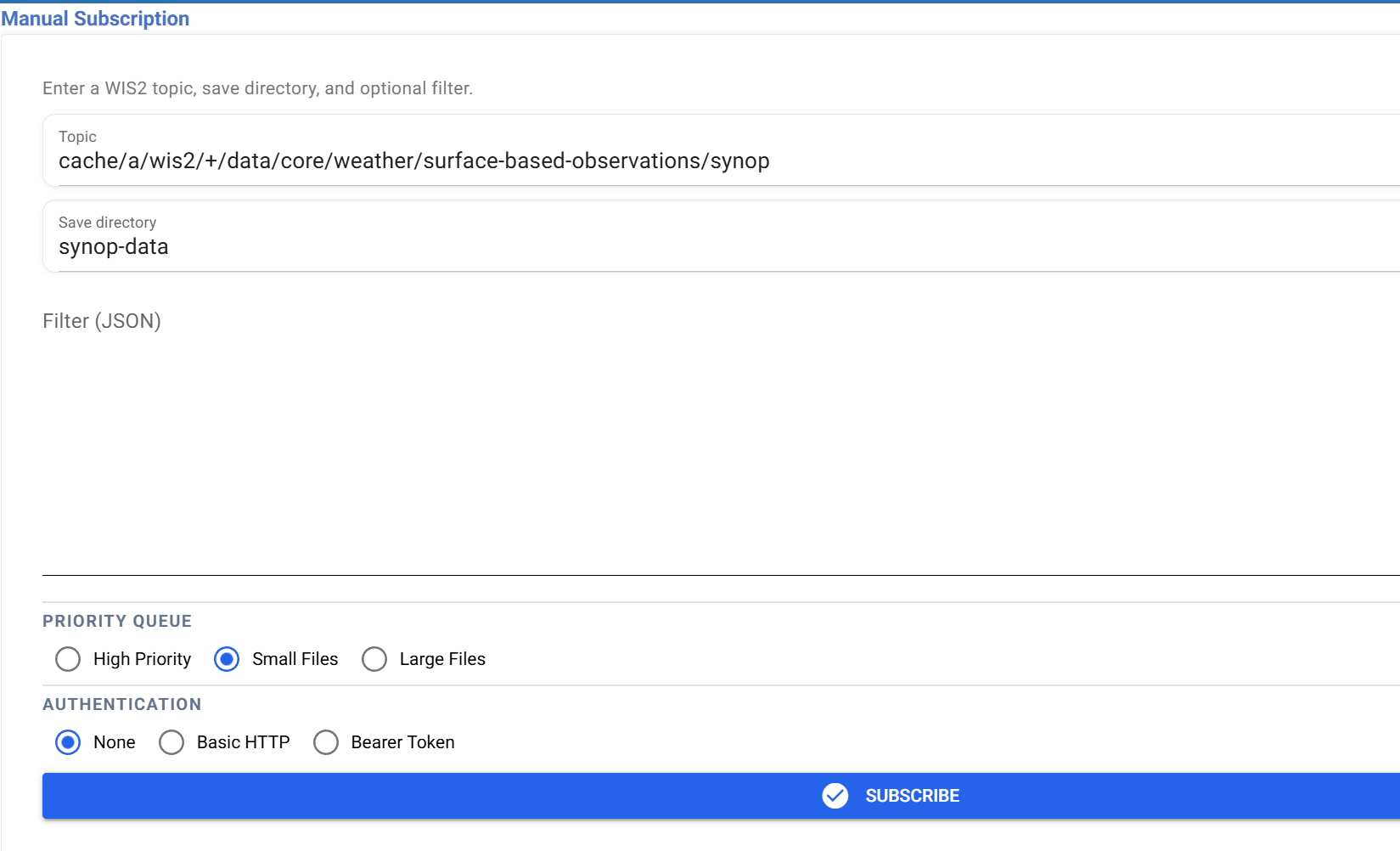
Now press the Subscribe button and confirm your subscription.
Following this check the download folder in your student VM by using the command:
ls -R ~/wis2-downloads
And now you should see a series of files that have been downloaded by your instance.
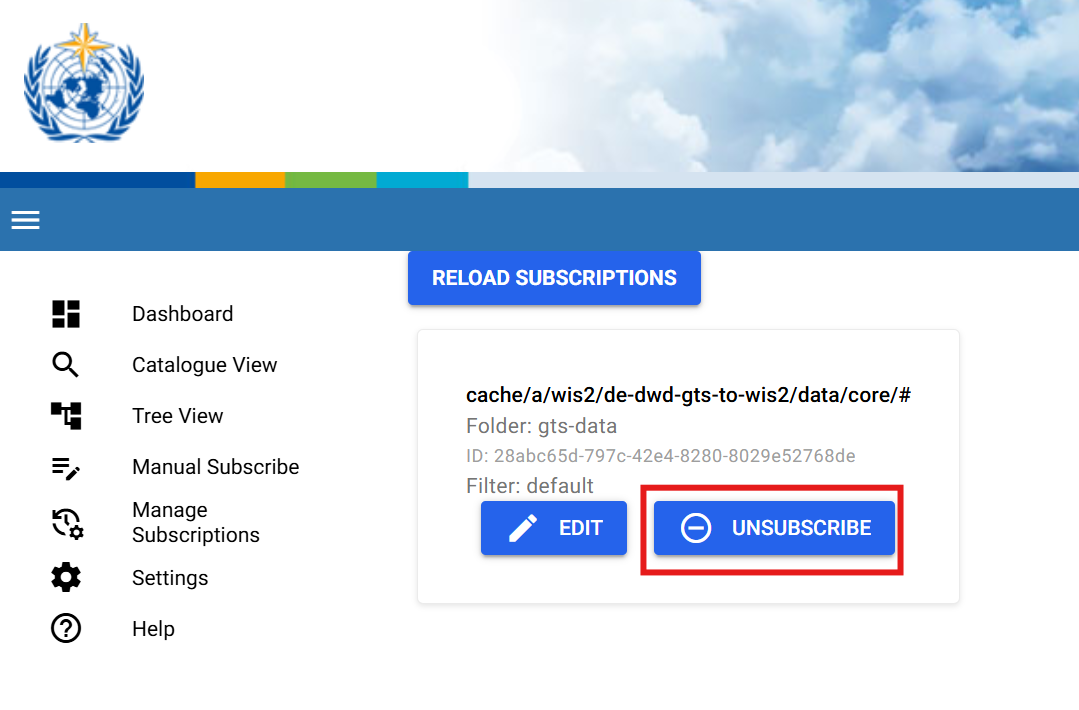
As a final step we can delete the subscription by going to the Manage Subscriptions view and pressing the Unsubscribe button.
Deleting downloaded files
It is recommended to clean up the downloads folder after completing an exercise in order to free up space on the student VM. As such run the following command to delete the previous exercises files.
rm -fr ~/wis2-downloads/synop-data
Reviewing the WIS2 Downloader configuration
The WIS2 Downloader instance is configured using the environment variables defined in your .env file.
You may check a breakdown of the environment variables in the WIS2 Downloader Admin Guide Section 2.1
To review the current configuration of the WIS2 Downloader, you can use the following command:
cat .env
Review the configuration of the WIS2 Downloader
What is the default retention period for the downloaded data?
Which port does the subscription manager API listen on?
Click to reveal answer
The default retention period for the downloaded data is 30 days, as set by DOWNLOAD_RETENTION_PERIOD.
The subscription manager API listens on port 5002, as defined in WIS2DOWNLOADER_SUBSCRIPTION_MANAGER_URL.
Updating the configuration of the WIS2 Downloader
To update the configuration, edit the .env file and restart the stack to apply the changes:
docker compose up -d
You can keep the default configuration for the next exercises.
WIS2 Downloader API
The WIS2 Downloader exposes a REST API at <WIS2DOWNLOADER_BASE_URL>:5002. Confirm the service is ready:
curl localhost:5002/health
You should see:
{"status": "healthy"}
To create a subscription, send a POST request with the MQTT topic and an optional target subdirectory where files will be saved:
curl -s -X POST localhost:5002/subscriptions \
  -H "Content-Type: application/json" \
  -d '{"topic": "cache/a/wis2/+/data/core/weather/surface-based-observations/#", "target": "surface-obs"}'
Same as before the downloaded files can be reviewed by checking the surface-obs folder in the download directory:
ls -R ~/wis2-downloads/surface-obs
The response includes the UUID assigned to the new subscription. Use it to delete the subscription when no longer needed:
curl -X DELETE localhost:5002/subscriptions/{id}
Deleting downloaded files
It is recommended to clean up the downloads folder after completing an exercise in order to free up space on the student VM. As such run the following command to delete the previous exercises files.
rm -fr ~/wis2-downloads/surface-obs
For the full list of available endpoints (list, get, update subscriptions and more), refer to the interactive Swagger documentation available at localhost:5002/swagger.
Conclusion
Congratulations!
In this practical session, you learned how to:
- install WIS2 Downloader on your local system and change the default configurations
- interact with the UI to create and remove subscriptions
- manage subscriptions using the API
- view the downloaded data on your local system